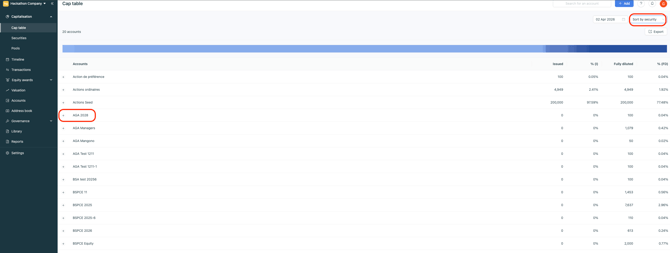
In order to grant free shares to your employees on Equify, juste follow the steps:
0️⃣ If you wish to use the templating functionality, add Smartfields to your documents.
1️⃣ Create the new security
2️⃣ Create the new pool
3️⃣Create the new accounts
4️⃣ Add the grant transaction
Follow the guide ! 🧑🏫
0️⃣ Prepare your documents for templating :
- Open your document in Word.
- Replace the information you wish to customise with Smartfields.
📚 Smartfields
📚 Edit a document for electronic signature ? - Upload you documents on Equify.
📚Add a document
1️⃣ Create the new security
If you are granting free shares for the first time, or if you are granting a new kind of free shares, you have to create a new security.
2️⃣ Create the new pool
If the free shares are part of a pool, you have to create it.
💡 A pool corresponds to a delegation granted to the President.
If you are granting free shares for the first time, you must create a pool.If you have already made free share grants, you need to check whether the new free shares come from an existing pool or whether a new pool must be created following a new delegation.
3️⃣ Create the new accounts
If you are going to grant free shares to employees who do not yet hold any securities in the company, you need to create an account for them on Equify.
⚠️ Please make sure the account holders’ information is up to date, including their postal address, phone number, and email address, as document customization and electronic signature rely on these details.
4️⃣ Add a free share grant transaction
At this stage, you select the relevant accounts, along with the security, the pool, and the documents to be signed.
- Add a transaction using the blue Add+ button in the top right corner, then select Grant.
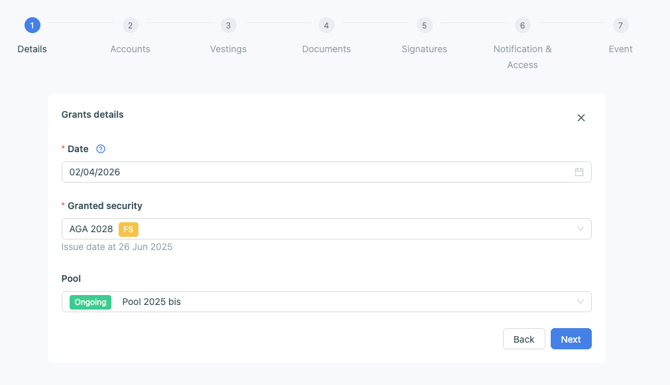
- In the Details step, choose the grant date, then select the security and the pool.
- In the Accounts step, select the account, the quantity granted, and the vesting start date. If your free share grant includes multiple accounts, you can add additional lines.
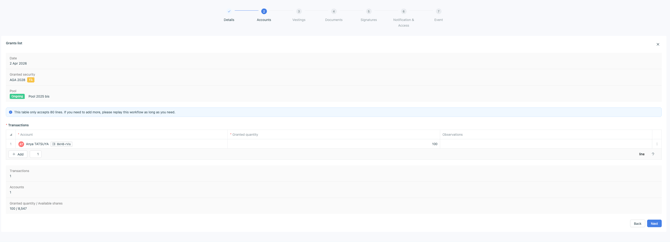
💡 Vesting start date: the date from which vesting begins to be calculated for this account.
If this corresponds to the employee’s start date in the company, the vesting start date will, in theory, be different for each account.
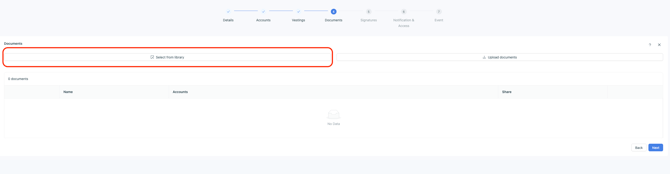
- In the Documents step, select the documents you imported in step 0️⃣, including the Smartfields and signature tags.
- In the Signatures step, check the information.
- In the Event step, create an event dedicated to this grant, or select an existing event.
Your documents have been customized and sent for signature!
How can you view your grant transaction?
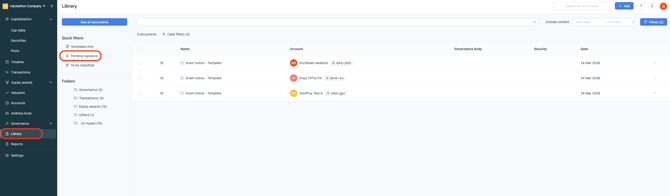
- You can find all documents sent for signature in Library > Signatures.
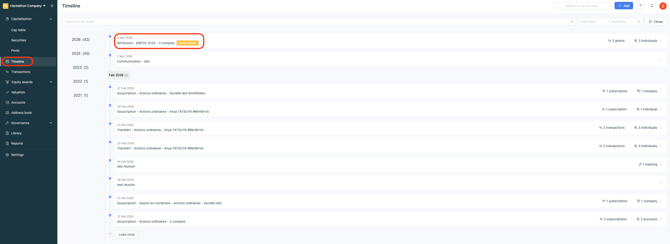
- You can find the grant transactions in Timeline > the event you created or an existing event.
- You can find your transactions in your cap table > Sort by security.