
1️⃣ In the left menu, choose Transactions
2️⃣ For the concerned transaction , click on the 3 small dots at the end of the line, and then on Edit

To search a transaction easily, it's 👉here
3️⃣ A window appears, allowing you to edit or delete the transaction :
- To delete it, click on the Delete button then enter the word delete in the field provided and click on Delete again.
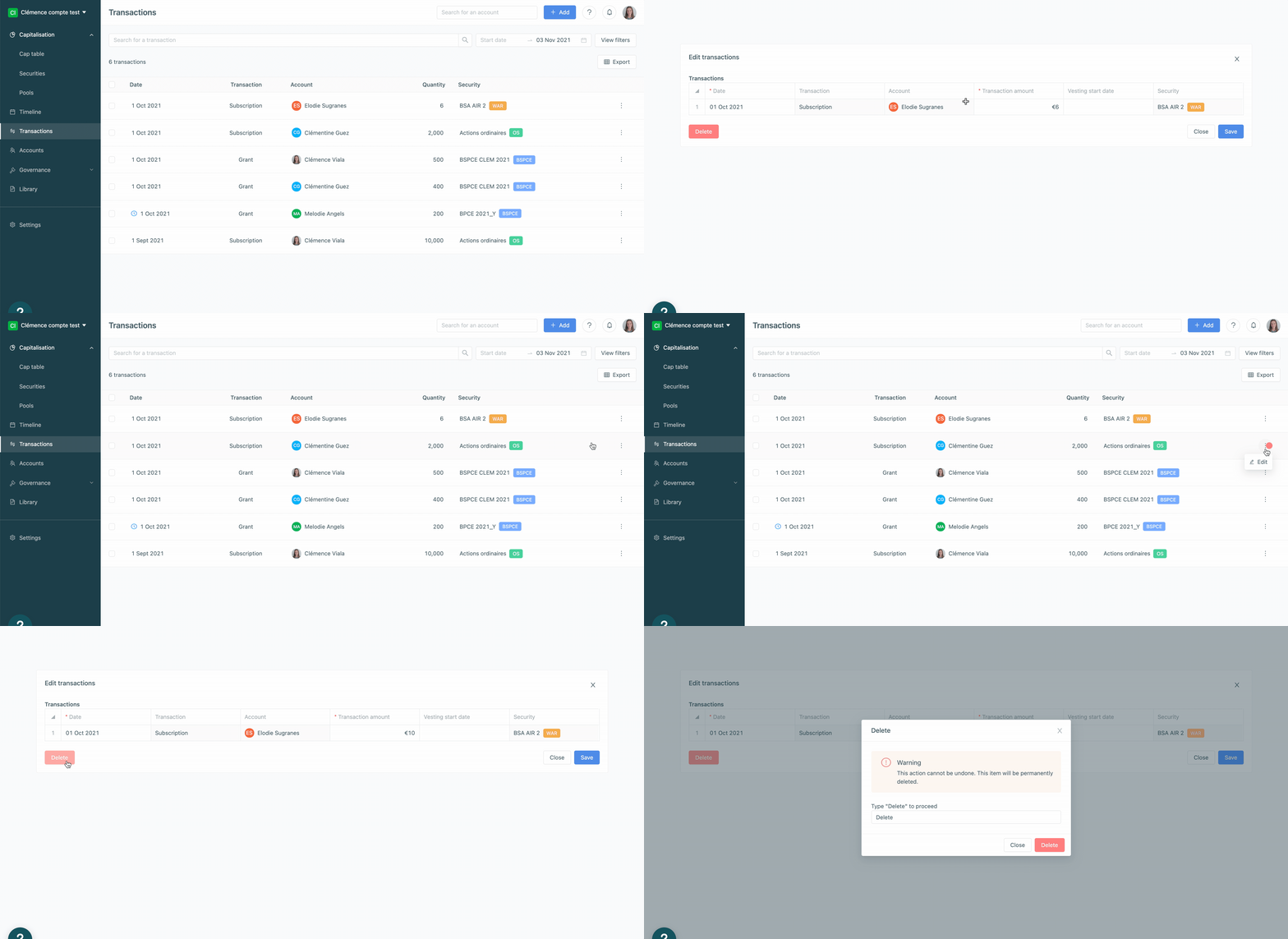
- To edit the settings of the transaction, simply place yourself in the field to be changed. When you have finished making edits, click Save.
⚠️ Warning: it is not possible to edit or delete a transaction if it is linked to another transaction with a later date, which the edits may render invalid.
Example : John holds 5,000 ordinary shares in his portfolio, obtained through a subscription transaction on 1 April 2020.
On May 1st, 2020, John sells 400 ordinary shares to Mark.
- If you choose to delete the April 1, 2020 subscription transaction, this would have a direct impact on the May 1, 2020 sale transaction and therefore would not be possible.
- If, on the other hand, you wish to change the quantity of shares subscribed for by John from 5000 to 2000, this would be possible.
⚠️ Warning: If you still want to delete the subscription transaction of 1 April 2020, you will first have to delete the subsequent sale transaction.